
A SpriteKit scene is an infinite canvas. Its size defines its drawable window. Floating point precision issues appear for objects positioned very far away from the origin.
Most tutorials and resources available on SpriteKit will use a specific size for the scene, and pass it to the initializer method. How should you size your SpriteKit scene? How does scene size affect performance? Will my nodes' position be constrained by the scene size? If a physics body falls under gravity, will it continue to fall indefinitely?
In reality, scene size is the size of its visible portion. The scene itself is infinite. Below are references to better understand the relationship between the scene (infinite) and its presenter (the view, finite).
From SpriteKit Programming Guide:
A scene’s size defines its visible area. When a scene is first initialized, its size property is configured by the designated initializer. The size of the scene specifies the size of the visible portion of the scene in points. This is only used to specify the visible portion of the scene. Nodes in the tree can be positioned outside of this area; those nodes are still processed by the scene, but are ignored by the renderer.
If we command-click on the type SKScene in Xcode, we can bring up the header information for the class:
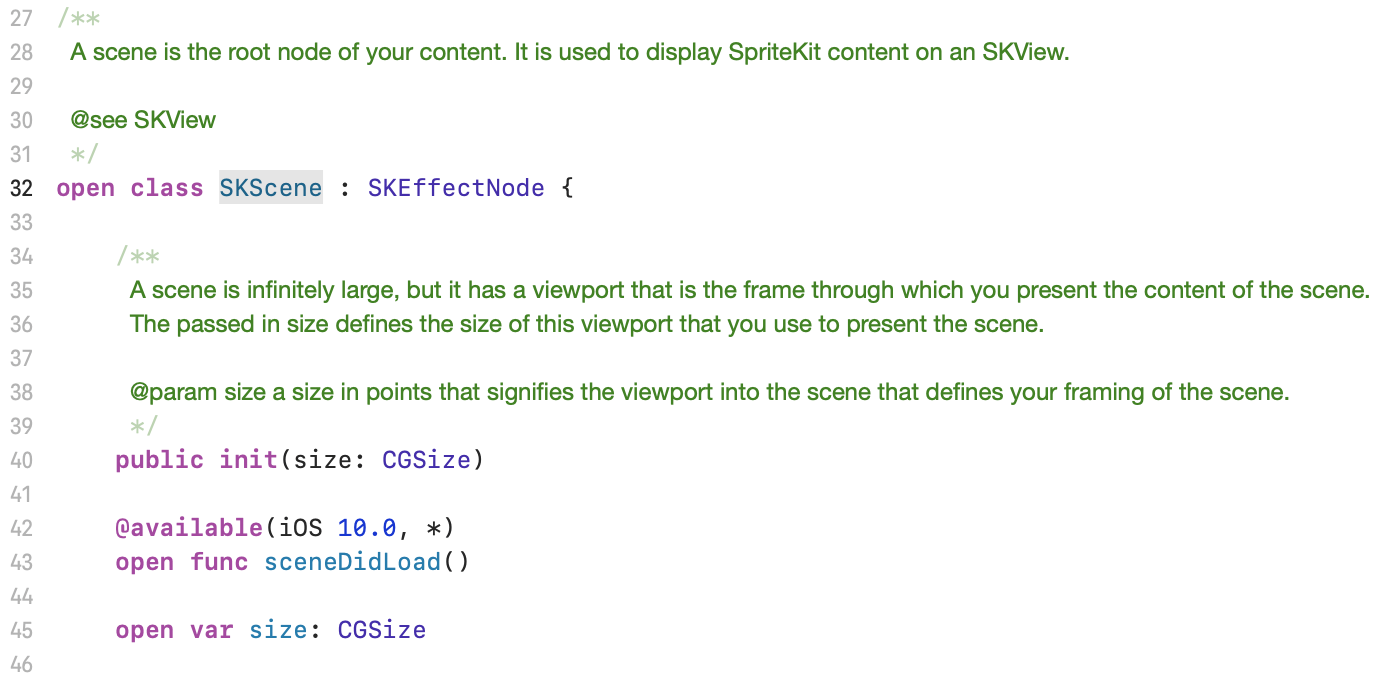 Media unavailable: SpriteKit-SceneSize-SKSceneXcodeHeader.png
An older version of the header, quoted here, reads:
To display different portions of your scene, move the contents relative to the viewport. One way to do that is to create a SKNode to function as a viewport transformation. That node should have all visible contents parented under it.
That version probably predates the introduction of SKCameraNode. As for the relation between the scene size and the viewport size, we can read this in the same header file:
fill: Scale the SKScene to fill the entire SKView
aspectFill: Scale the SKScene to fill the SKView while preserving the scene's aspect ratio. Some cropping may occur if the view has a different aspect ratio.
aspectFit: Scale the SKScene to fit within the SKView while preserving the scene's aspect ratio. Some letterboxing may occur if the view has a different aspect ratio.
resizeFill: Modify the SKScene's actual size to exactly match the SKView.
A SpriteKit scene is an infinite canvas by default. The size of a scene is the part that is rendered by the view. scaleMode controls how that size maps to the view, including resizing the size to fit the view 1:1 with resizeFill.
SKCameraNode
When SKCameraNode is used and the camera is zoomed out, a bigger portion of the scene is mapped to the view, but scene.size stays the same.
This introduces some complications when Core Image filters are applied directly to the scene. In my experiments, the filtered image was cropped when zooming out, and downsampled when zooming in. I got more predictable results by moving and scaling the scene's content directly instead of using SKCameraNode.
Floating Point Precision
Regardless of scene size, objects can be positioned freely. Logic, actions, and physics will apply to all nodes beyond the visible area. However, there are limits to consider when content is placed far away from the origin. Consider the experiment below:
CGPoint(x: 10_000_000, y: 10_000_000). When the camera is zoomed in, notice how the UI labels start jiggling, likely because of floating point precision issues.When the camera is reset to
CGPoint(x: 0, y: 0), there are no positioning artifacts during zoom.When the camera is far from origin (10 million points away) and scaled down (zoomed in), we run into floating-point precision limits.
Links
-
Apple Documentation Archive, SpriteKit Programming Guide.